세일즈포스에서 여러 언어를 사용할 경우 번역할 데이터를 다운 받거나 업데이트 가능합니다. Translation Workbench를 활용하여 번역할 데이터의 키값을 받아서 변경할 언어를 업데이트 가능합니다.
다만, 잘못된 키값 또는 오류가 하나라도 있을 경우에는 데이터는 업데이트 되지 않습니다. 모든 데이터가 정확하게 만들어진 상태에서 업데이트가 성공 후 이메일을 통해서 완료 통지를 받을 수 있습니다.
As an alternative to translating text in the Salesforce UI, you can export a file of translatable text, translate it offline, and import it back into Salesforce in the desired new language. You can edit the export/import file in a text editor. For more detailed information, refer to the Salesforce documentation about Translation Workbench.
Exporting Labels:
We can exports three type of .stf files
- Source file (First time )
- Untranslated file
- Bilingual file
Export
To export a file of text to be translated:
- Navigate to user name > Setup > Administration Setup > Translation Workbench > Export.
- Select Source to customize or one of the other options to translate.
- Click Export. This exports a file containing all the custom labels and custom object text, which you can then customize as desired.
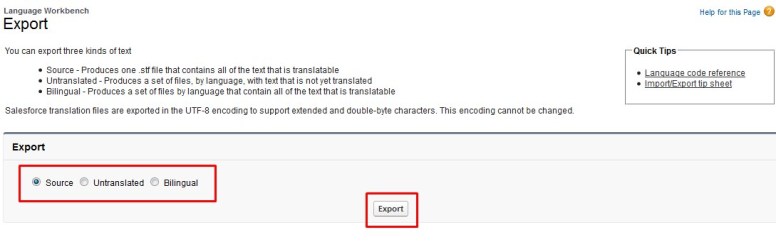
Exporting Labels for a First-Time Translation:
-
From Setup, enter Export in the Quick Find box, then select Export
-
Select Source
This option creates the Source file, which contains a list of all your translatable labels. Typically, the content is in your organization’s default language
-
Click Export. When the export is complete, an email is sent to the email address specified in your profile.
-
Locate the exported .stf or .zip file.
Go to Your name > Documents > Document Folders > My Personal Documents > Go!
An example Source file name is: Source_en_US_2010-09-23_11:20.stf
- Save the file.
Click View > Save File > OK. The file is saved to the location specified by your browser. For example, C:/Users/username/Downloads
-
Send the file to your translator
Exporting Labels for Subsequent Translations:
-
From Setup, enter Export in the Quick Find box, then select Export
-
Select Untranslated
This option creates a set of Untranslated files that contain only labels that haven’t been translated, including new and modified labels. Since each language might be in a different state of translation, one file is created for each language. Multiple language files are compressed into one zip file
-
Click Export. When the export is complete, an email is sent to the email address specified in your profile.
-
Locate the exported .stf or .zip file.
Go to Your name > Documents > Document Folders > My Personal Documents > Go!
An example Source file name is: Untranslated_en_US_2010-09-23_11:20.stf
- Save the file.
Click View > Save File > OK. The file is saved to the location specified by your browser. For example, C:/Users/username/Downloads
-
Send the file to your translator
Exporting Translated Labels for Review:
-
From Setup, enter Export in the Quick Find box, then select Export
-
Select Bilingual
This option creates one or more Bilingual files, each of which contains a list of all translatable labels in their current translated or untranslated states. Since each language might be in a different state of translation, one file is created for each language. Multiple files are compressed into zip files.
-
Click Export. When the export is complete, an email is sent to the email address specified in your profile.
-
Locate the exported .stf or .zip file.
Go to Your name > Documents > Document Folders > My Personal Documents > Go!
An example Source file name is: Bilingual_en_US_2010-09-23_11:20.stf
- Save the file.
Click View > Save File > OK. The file is saved to the location specified by your browser. For example, C:/Users/username/Downloads
-
Send the file to your translator
Editing Translation Files
You use the following types of files to translate customization labels and review translations:
1. Source: Use to translate labels for the first time.
2. Untranslated: Use to translate labels after the first translation pass.
3. Bilingual: Use to review and edit translations.
Translation files are identified by the extension .stf, to represent the Salesforce translation format. A translation filename includes the name of the export option used to create it, the language code for the file’s content, and a date stamp. Multiple .stf files created with the Untranslated and Bilingual options are compressed into zip files up to 5 MB in size. If multiple zip files are needed, the zip filenames are each date stamped and incremented. For example,
Untranslated 2010–09–20 05:13
Working with the Source File:
Use the Source file to translate an organization’s labels for the first time. The Source file contains labels for all of an organization’s translatable customizations in the organization’s default language.
To prepare the Source file for your translators:
1 . Create one copy of the Source file for each language you are translating into.
2. In the header of each Source file, change the language code from the organization’s default language (such as en_US ) to the translation language (such as fr )
Column Description Edit Options
KEY Unique identifiers for labels Do not editLABEL Labels that are visible to end users Replace untranslated values with translated values
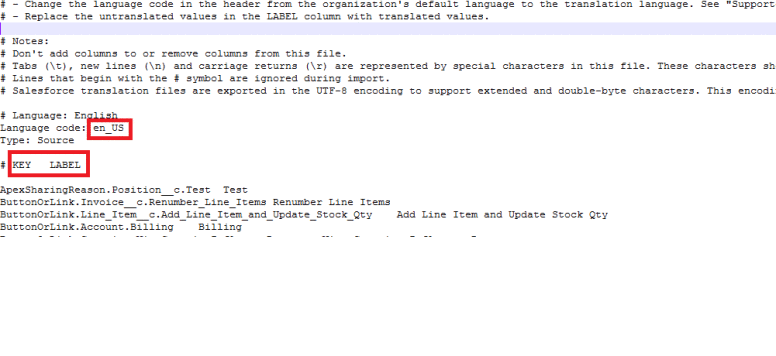
Working with the Untranslated File:
Use the Untranslated file to translate labels that haven’t been translated. One Untranslated file is generated for each language. When multiple files are generated, they’re exported to a .zip file containing .stf files for each translation language.
Column Description Edit Options
KEY Unique identifiers for labels Do not editLABEL Labels that are visible to end users Replace untranslated values with translated values

Working with the Bilingual File:
Use the Bilingual file to review translations, edit labels that have already been translated, and add translations for labels that haven’t been translated. One Bilingual file is generated for each translation language. The TRANSLATED section of the file contains the text that has been translated and needs to be reviewed. The UNTRANSLATED section of the file contains text that hasn’t been translated.
Column Description Edit Options
KEY Unique identifiers for labels Do not editLABEL Labels that are visible to end users Do not edit labels in the TRANSLATED
section of the file.
In the UNTRANSLATED section of the file,
replace untranslated labels with translated value.
TRANSLATION Current translation In the TRANSLATED section of the file, edit
current translations.
In the UNTRANSLATED section of the file,
add translations.
OUT OF DATE Indicates whether the source text Do not edit
has changed since the previous
translation.
An asterisk (*): The label is out of
date.
A change was made to the default
language label and the translation
hasn’t been updated.
A dash (-): The translation is current.

Import
To import a file containing the translated label values:
- Navigate to user name > Setup > Administration Setup > Translation Workbench > Import.
- Click Choose File and select the file to import.
- Click Import.

sarifulislamsite.wordpress.com/2015/11/21/translate-using-translation-workbench-export-and-import/
Translate Using Translation Workbench Export and Import
As an alternative to translating text in the Salesforce UI, you can export a file of translatable text, translate it offline, and import it back into Salesforce in the desired new language. You can…
sarifulislamsite.wordpress.com
'Salesforce' 카테고리의 다른 글
| [Salesforce] Pardot B2B Marketing Analytics Dashboards (0) | 2021.03.09 |
|---|---|
| [Salesforce] Pardot Consultant Exam Study (0) | 2021.03.09 |
| Salesforce Certified Pardot Consultant 시험 준비사항 (0) | 2021.03.01 |
| [Salesforce] 세일즈포스 시험 응시 후기 (Online) 집에서... (0) | 2021.02.28 |
| [Salesforce] 세일즈포스 자격증 시험 접수 방법/집에서 시험 응시하기(Online) (0) | 2021.02.28 |


